---
layout: page_v2
sidebarType: 1
title: Prebid.js Troubleshooting Guide
description: Troubleshooting Guide
---
# Troubleshooting Prebid.js
{:.no_toc}
This guide will provide several sequential steps to help troubleshoot your Prebid.js integration.
- TOC
{:toc}
## Check your Prebid version
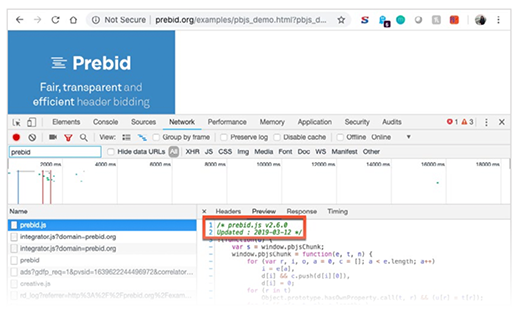
The open source code in Prebid.js can change frequently. To see what version of Prebid.js you are using, open your browser console and type `pbjs.version;`.
## Turn on Prebid.js debug messages
Add `pbjs_debug=true` to the end of your page’s URL. For example:
```html
/pbjs_demo.html?pbjs_debug=true
```
This will add two types of messages to your browser’s developer console:
1. Prebid.js suppresses Javascript errors in the normal mode to not break the rest of your page. Adding the `pbjs_debug` parameter will expose the Javascript errors.
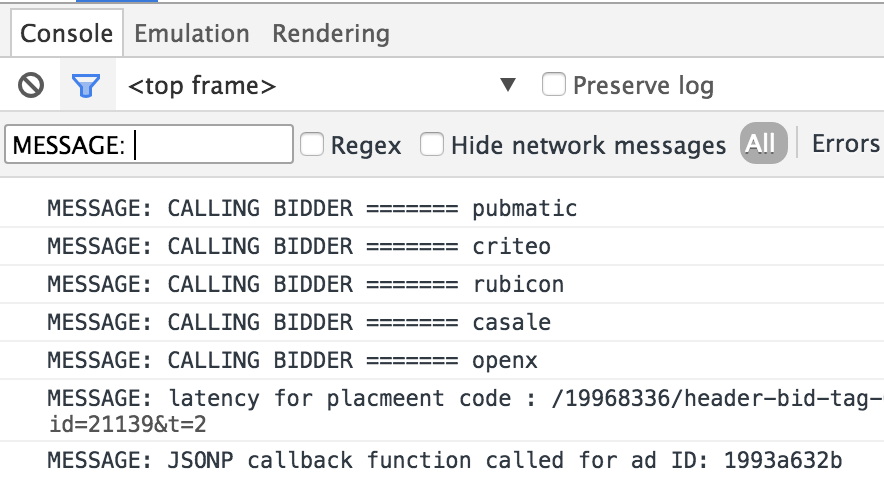
2. You’ll find additional debug messages. Filter the messages by string `MESSAGE`:. For example:
{: height="50%" width="50%" :}
{: .table .table-bordered .table-striped }
| Message | Description |
| :--- | :--- |
| Calling bidder | When Prebid.js sends out bid requests, this message is logged |
| Set key value for placement | After all the bids came back, or when timeout is reached, prebid.js will set keyword targeting for the defined ad units. |
| Calling renderAd | If a header bidding bid wins the ad server's auction, prebid.js will render the winning bid's creative. |
Starting with Prebid.js 11.29.0, turning on debug mode also loads the [DevTools MCP module](/dev-docs/modules/devtoolsMcp.html), which lets an AI agent using Chrome DevTools inspect auctions, bids, events and config on the page.
## Verify your config
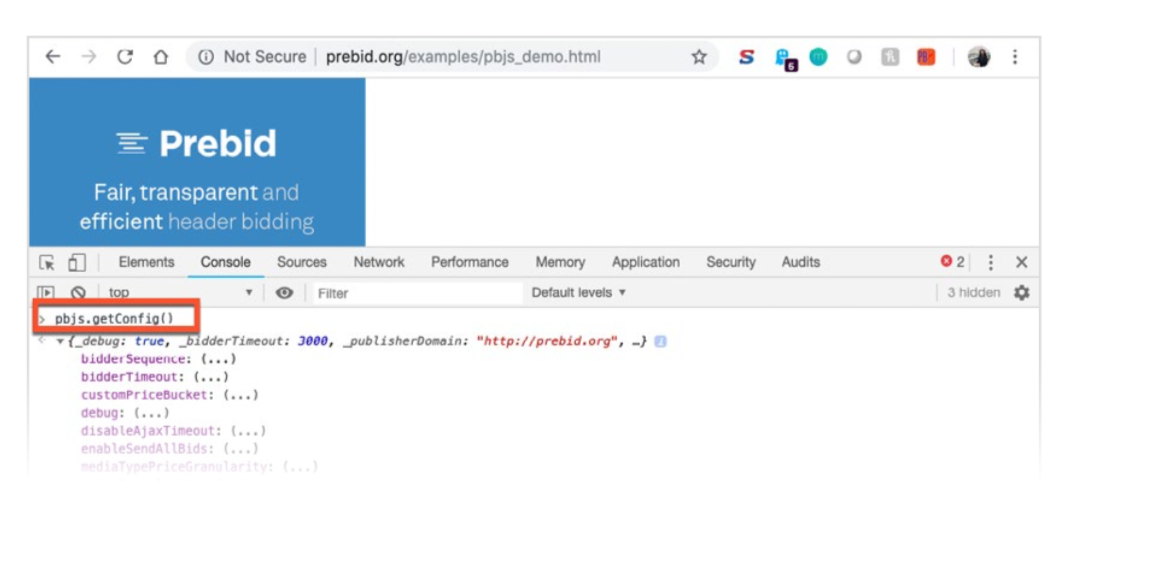
In your browser Console tab, insert `pbjs.getConfig()` in the command line. Check for basic setup in the output, including:
- selected timeout,
- selected priceGranularity.
{: height="70%" width="70%" :}
## Turn on your ad server’s developer console
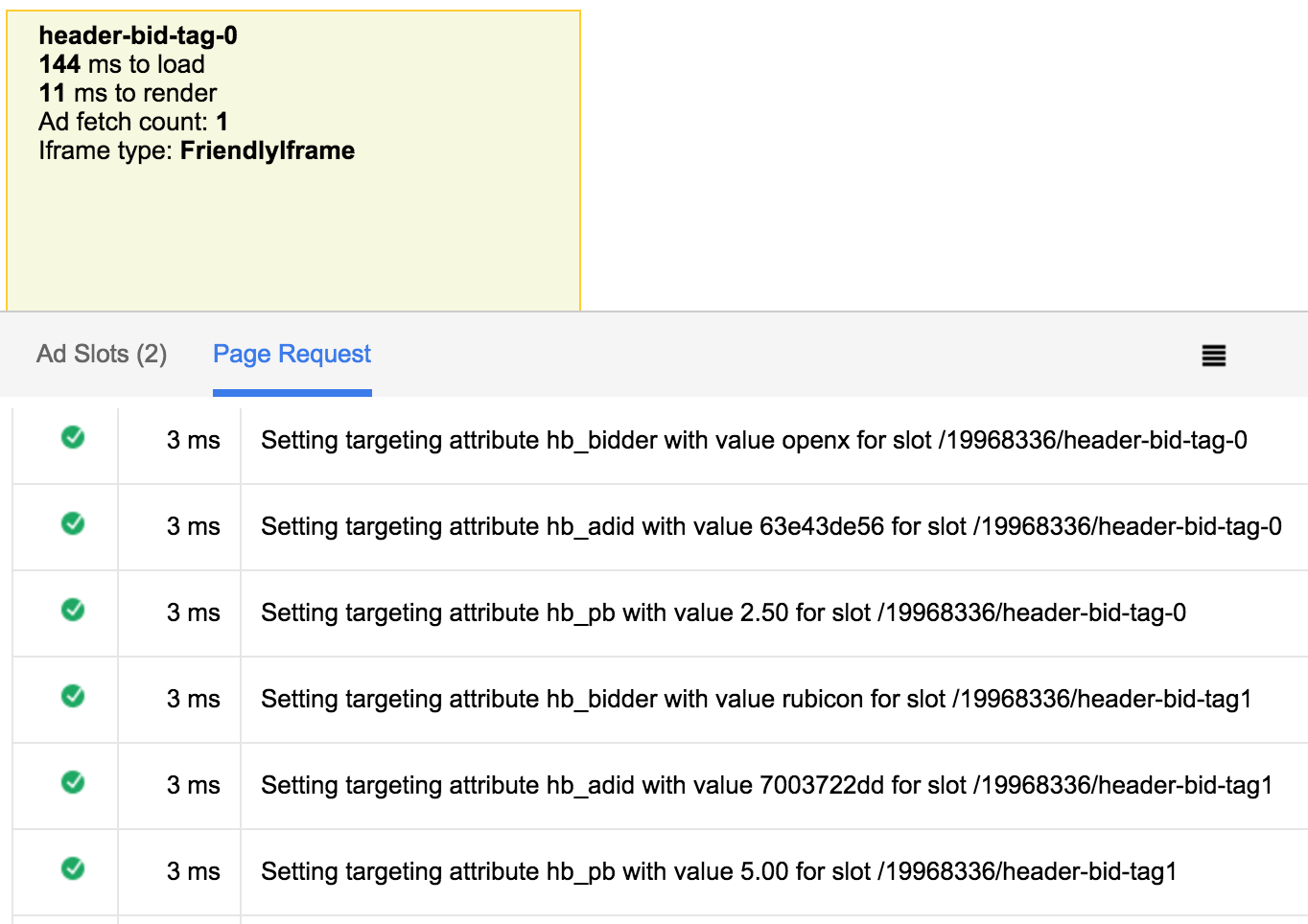
The ad server's developer console usually provide information such as targeting, latency, and key events logging. For example, here is a screenshot of GAM's GPT developer console logs:
{: height="70%" width="70%" :}
## Delay the ad server call so key-values can be set
Make sure that you delay the calls to the ad server. This allows the targeting key-values to be set before the auction in the ad server occurs.
Within GAM, this is achieved by adding the following code to your page. It should be called before any of the ad server code to make sure it runs first.
```javascript
var googletag = googletag || {};
googletag.cmd = googletag.cmd || [];
googletag.cmd.push(function() {
googletag.pubads().disableInitialLoad();
});
```
## Verify ad unit setup
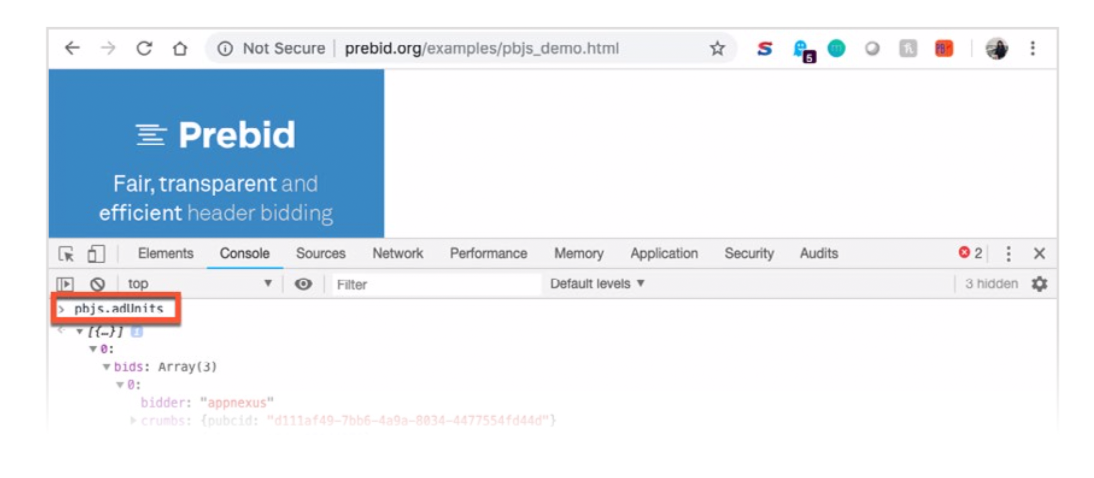
In your browser Console tab, insert `pbjs.adUnits` in the command line. Check for correctly implemented ad units on-page in the output, including correct bidder, media type, sizes.
{: height="70%" width="70%" :}
## Check the ad units on the page
Make sure the ad units configured for Prebid.js match up with the ad units that have been set up in your ad server.
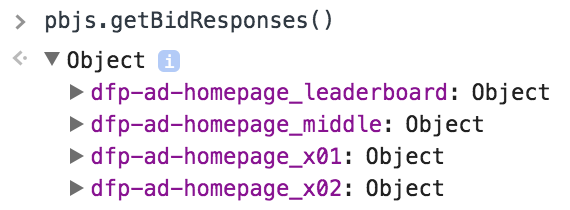
You can review what ad units have been configured for Prebid by opening your browser console and typing `pbjs.getBidResponses();`. This also shows what bids have been returned from each of the bidder partners in chronological order as shown in the screenshot below:
{: height="70%" width="70%" :}
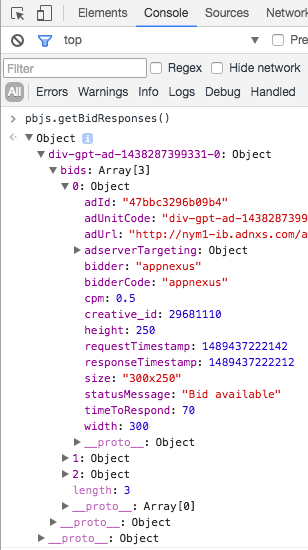
**Expanded view of bid responses**
{: height="50%" width="50%" :}
To see all of the winning bids, open your browser console and type `pbjs.getAllWinningBids();`.
{: .pb-alert .pb-alert-warning :}
Keep in mind that any bid responses that come back after the [timeout you configured](/dev-docs/publisher-api-reference/setConfig.html#setConfig-Bidder-Timeouts) during setup will not be sent to the ad server.
{: .pb-alert .pb-alert-tip :}
You can also print this data to the console in [table format](#see-all-bids-in-the-console) for easier reading.
## Modify or inject bid responses for testing
Use the [Debugging Module](/dev-docs/modules/debugging.html) to alter bids or
fabricate test bids.
## Define Prebid Server Responses
{: .pb-alert .pb-alert-important :}
This debugging approach currently only works for the Java version of Prebid Server.
Here's another scenario using the 'debugging' feature described in the previous section.
This section covers cases in which a particular server-side bidder doesn't always respond with a bid, or you want to try specific bid CPM values to verify line item setup.
If you're using Prebid Server (i.e. the [s2sConfig](/dev-docs/publisher-api-reference/setConfig.html#setConfig-Server-to-Server) option), you can force it to respond with a particular canned response on any page by defining a storedAuctionResponse ID on the javascript console:
```javascript
javascript console> pbjs.setConfig({
debugging: {
enabled: true,
bidRequests: [
{adUnitCode: "test-div", storedAuctionResponse: "bidderA-4cpm-bidderB-3.5cpm"}
]
}
});
```
Then simply reload the page.
Your Prebid Server host company will have set up some responses in their Prebid Server's database. They will provide
the storedAuctionResponse IDs you can use, and can add other scenarios you'd like to test.
As noted in the previous section, the debugging feature works by setting HTML local storage that persists for the session. To turn off debugging, set 'enabled' to false:
```text
javascript console> pbjs.setConfig({
debugging: {
enabled: false
}
});
```
## List your Bids and Bidders
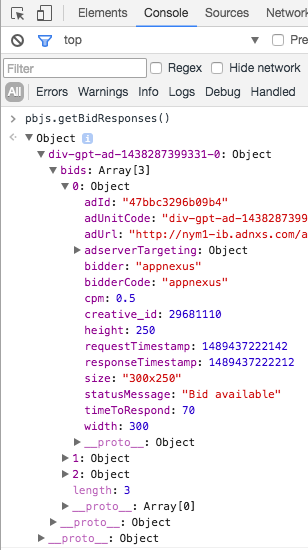
Open your browser console and type `pbjs.getBidResponses();` to see a list of the ad units that have been configured. This also shows what bids have been returned from each of the bidder partners in chronological order as shown in the screenshot below.
To see all of the winning bids, open your browser console and type [`pbjs.getAllWinningBids();`](/dev-docs/publisher-api-reference/getAllWinningBids.html).
{: .alert.alert-danger :}
Keep in mind that any bid responses that come back after [the timeout you configured during setup](/dev-docs/publisher-api-reference/setConfig.html#setConfig-Bidder-Timeouts) will not be sent to the ad server.
{: .alert.alert-success :}
You can also [print this data to the console in table format](#see-all-bids-in-the-console) for easier reading.
{: .pb-lg-img :}
## See all bids in the console
To print information about all of the bids that come in to the Console on any page that is running Prebid.js, follow these steps.
Open the Chrome Dev Tools. In the **Sources** tab, next to **Content Scripts**, click the **>>** button and you can add **Snippets**:
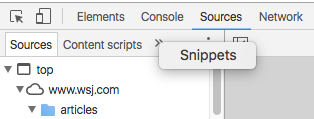{: .pb-sm-img :}
Right-click to add a **New** snippet:
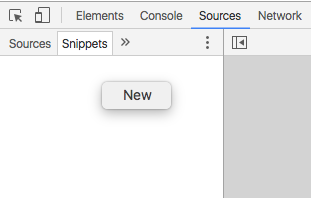{: .pb-sm-img :}
Paste in the following code using Control-V (or Command-V on Mac), and give the snippet a name, such as 'show-all-bids':
```javascript
(function() {
function forEach(responses, cb) {
Object.keys(responses).forEach(function(adUnitCode) {
var response = responses[adUnitCode];
response.bids.forEach(function(bid) {
cb(adUnitCode, bid);
});
});
}
var winners = pbjs.getAllWinningBids();
var output = [];
forEach(pbjs.getBidResponses(), function(code, bid) {
output.push({
bid: bid,
adunit: code,
adId: bid.adId,
bidder: bid.bidder,
time: bid.timeToRespond,
cpm: bid.cpm,
msg: bid.statusMessage,
rendered: !!winners.find(function(winner) {
return winner.adId==bid.adId;
})
});
});
forEach(pbjs.getNoBids && pbjs.getNoBids() || {}, function(code, bid) {
output.push({
msg: "no bid",
adunit: code,
adId: bid.bidId,
bidder: bid.bidder
});
});
if (output.length) {
if (console.table) {
console.table(output);
} else {
for (var j = 0; j < output.length; j++) {
console.log(output[j]);
}
}
} else {
console.warn('NO prebid responses');
}
})();
```
Right-click the snippet and choose **Run**:
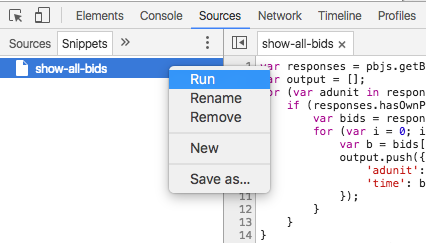{: .pb-sm-img :}
Check the output in Console to see the bids:
{: .pb-sm-img :}
## See all winning bids in the console
To print information about all of the winning bids that come in to the Console on any page that is running Prebid.js, follow these steps.
Open the Chrome Dev Tools. In the **Sources** tab, next to **Content Scripts**, click the **>>** button and you can add **Snippets**:
{: .pb-sm-img :}
Right-click to add a **New** snippet:
{: .pb-sm-img :}
Paste in the following code using Control-V (or Command-V on Mac), and give the snippet a name, such as 'show-all-winning-bids':
```javascript
var bids = pbjs.getHighestCpmBids();
var output = [];
for (var i = 0; i < bids.length; i++) {
var b = bids[i];
output.push({
'adunit': b.adUnitCode, 'adId': b.adId, 'bidder': b.bidder,
'time': b.timeToRespond, 'cpm': b.cpm
});
}
if (output.length) {
if (console.table) {
console.table(output);
} else {
for (var j = 0; j < output.length; j++) {
console.log(output[j]);
}
}
} else {
console.warn('No prebid winners');
}
```
Right-click the snippet and choose **Run**:
{: .pb-sm-img :}
Check the output in Console to see the bids (note that this screenshot shows the output from "see all bids" but they're very similar):
{: .pb-sm-img :}
## Verify ad server targeting
After the auction on page has occurred, Prebid.js will set key-value targeting for the ad server for those bids that have been returned before the timeout you configured during setup.
To see what values Prebid.js intends to send to the ad server, open your browser console and type `pbjs.getAdserverTargeting();` as shown below:
Check for the list of key-values for the bidder.
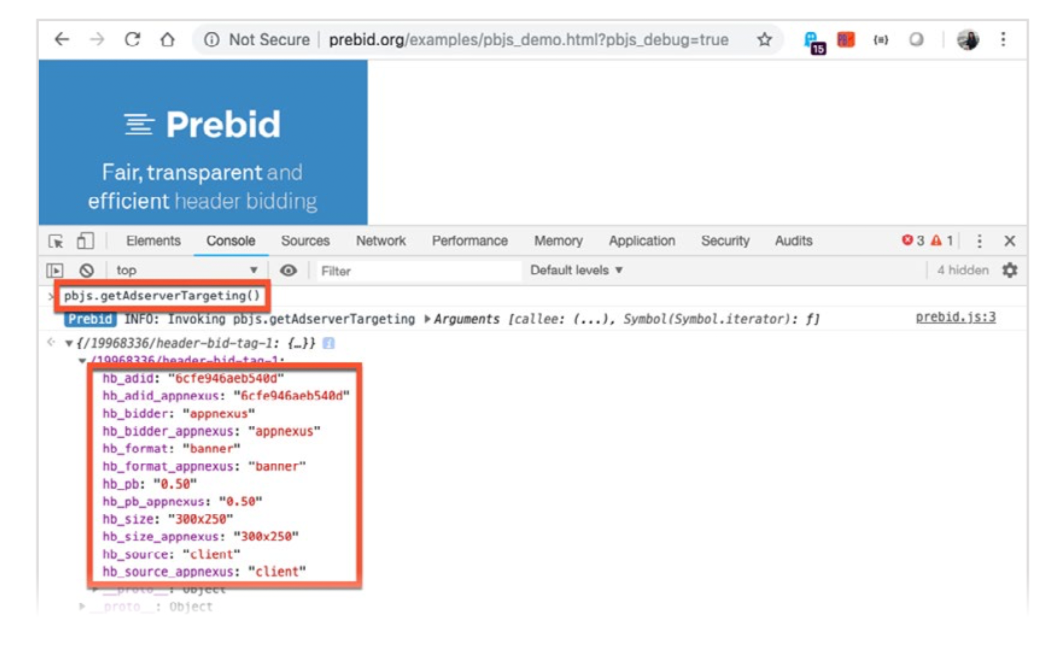{: height="70%" width="70%" :}
## Check the Ad Server’s Auction
After the Prebid auction has occurred and key-values have been set for the ad server, the ad server will use the line items targeting those key-values within its auction.
If you're using GAM, you can verify this by using the [Google Publisher Console](https://support.google.com/dfp_sb/answer/2462712?hl=en), which can be accessed as follows:
- Open your browser's console and type `googletag.openConsole();`
- Append `googfc` as a query parameter to the URL. Then, click the _Delivery Diagnostics_ option to reveal most of the information described below.
To make sure your ad server is set up correctly, answer the following questions:
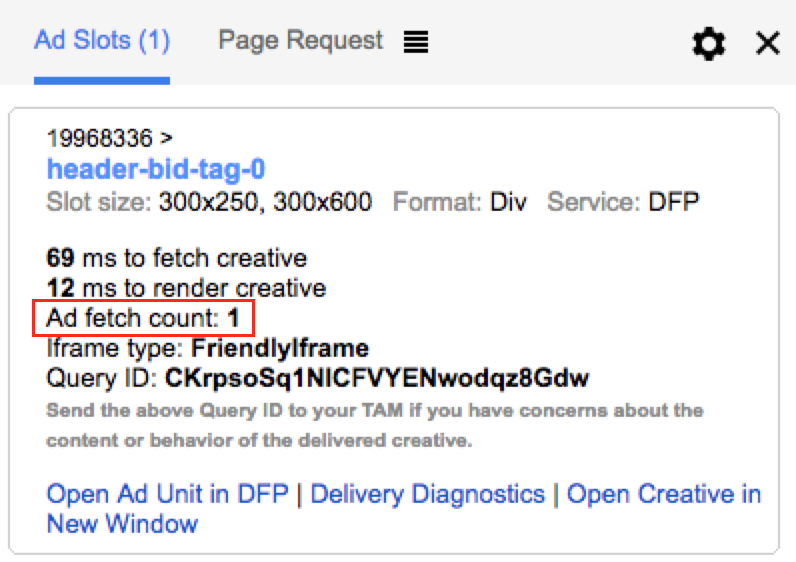
- **How many ads have been fetched for an ad unit?** Ideally, only 1 ad will be requested on page load. If not, check for unnecessary extra calls to the ad server in your page's source code.
{: .pb-sm-img :}
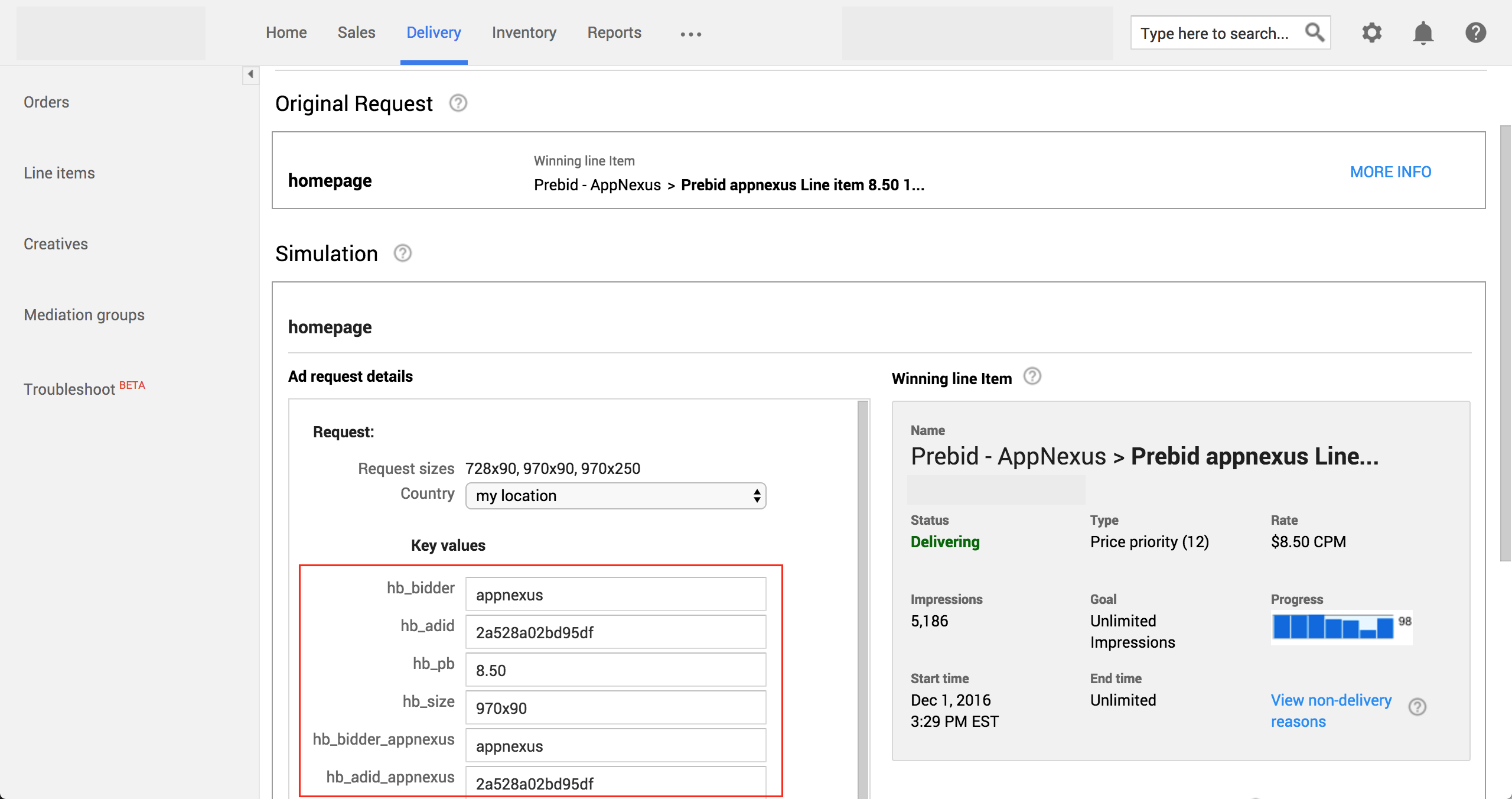
- **Are the key-values being set in the ad server?** If not, review your page's source code to ensure that the Prebid auction completes **before** sending the key-value targeting to the ad server.
{: .pb-lg-img :}
- **Has the ad server order been activated?** If not, you'll have to activate the order to see Prebid-delivered ads.
- **Are there other higher priority campaigns running within your ad server?** Higher priority campaigns will prevent Prebid ads with a higher CPM bid from winning in the ad server's auction. For testing purposes, you may want to pause these campaigns or have them excluded when the prebid key values are present.
- **Is there other remnant inventory in the ad server with a higher CPM that is winning?** To test for this, you may want to use a test creative set up within a bidder partner that has a high CPM or create artificial demand with a [bidCPMadjustment](/dev-docs/publisher-api-reference/bidderSettings.html).
- **Have you set up all of the line items in the ad server to match the [setPriceGranularity setting](/dev-docs/examples/custom-price-buckets.html) within Prebid.js?** All of the line items that correspond to your price granularity settings must be set up in your ad server. When there are gaps in the price granularity of your line item setup, bids will be reduced according to the size of the gap. For example, with [dense granularity](/dev-docs/publisher-api-reference/setConfig.html#denseGranularityBucket), a $3.32 bid will be sent to the ad server as $3.30.
## Look for the Winning Bid
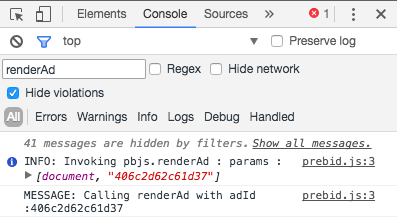
When a prebid line item wins the ad server's auction, a `renderAd` event will be logged in the browser console. To see this event, you need to do either of the following before the auction:
- Have typed `pbjs.logging=true` into your your browser console
- Appended `pbjs_debug=true` as a query parameter to the URL
When this event is logged, it shows that Prebid.js has requested to render the ad from the winning bidder partner, and that this partner's bid has won both the Prebid and ad server auctions.
{: .pb-lg-img :}
## Common Bid Response Parameters
The following parameters in the `bidResponse` object are common across all bidders.
{: .table .table-bordered .table-striped }
| Name | Type | Description | Example |
|----------+---------+-------------------------------------------------------------------------------------------------------------------------------------------------------------------+-------------------------------------------------------------------------|
| `bidder` | String | Unique bidder code used by ad server's line items to identify the bidder | `"msft"` |
| `adId` | String | Unique identifier of a bid creative. Used by the line item's creative as in [this example](/adops/gam-creative-banner-sbs.html) | `"123"` |
| `pbLg` | String | Low granularity price bucket: $0.50 increment, capped at $5, floored to 2 decimal places (0.50, 1.00, 1.50, ..., 5.00) | `"1.50"` |
| `pbMg` | String | Medium granularity price bucket: 0.10 increment, capped at $20, floored to 2 decimal places (0.10, 0.20, ..., 19.90, 20.00) | `"1.60"` |
| `pbHg` | String | High granularity price bucket: 0.01 increment, capped at $20, floored to 2 decimal places (0.01, 0.02, ..., 19.99, 20.00) | `"1.61"` |
| `size` | String | Size of the bid creative; concatenation of width and height by 'x' | `"300x250"` |
| `width` | Integer | Width of the bid creative in pixels | `300` |
| `height` | Integer | Height of the bid creative in pixels | `250` |
| `adTag` | String | Creative's payload in HTML | `" "` |
## Configure Auction Options with Logging
The below snippet can be added to your page to better understand the Auction when including secondary bidders. This will help visualize when and if secondary bidders return with bids in time or outside of the auction.
```javascript
pbjs.que.push(function() {
pbjs.addAdUnits(adUnits);
pbjs.aliasBidder('msft', 'waitForMe');
pbjs.aliasBidder('rubicon', 'doNotWaitForMe');
pbjs.setConfig({
'auctionOptions': {
'secondaryBidders': ['doNotWaitForMe']
}
})
auctionOptionsLogging(); // include for logging
pbjs.requestBids({
bidsBackHandler: sendAdserverRequest,
timeout: PREBID_TIMEOUT
});
});
// must run before requestBids is invoked
function auctionOptionsLogging() {
pbjs.onEvent('auctionInit', auction => {
console.log(`Auction Options: Auction Start at ${auction.timestamp} - ${auction.auctionId}`);
})
pbjs.onEvent('bidRequested', bidderRequest => {
console.log(`Auction Options: Bid Requested from ${bidderRequest.bidderCode} at ${bidderRequest.start} - ${bidderRequest.auctionId}`);
})
pbjs.onEvent('bidResponse', bid => {
console.log(`Auction Options: Bid Response from ${bid.bidderCode} at ${Date.now()} in ${bid.responseTimestamp - bid.requestTimestamp}ms - ${bid.auctionId}`);
})
pbjs.onEvent('noBid', bid => {
console.log(`Auction Options: No Bid from ${bid.bidder} - ${bid.auctionId}`);
})
pbjs.onEvent('bidderDone', bidderRequest => {
console.log(`Auction Options: Bidder ${bidderRequest.bidderCode} Done in ${Date.now() - bidderRequest.start}ms - ${bidderRequest.auctionId}`);
})
pbjs.onEvent('bidTimeout', timedOutBidders => {
let auctionId = timedOutBidders.length > 0 ? timedOutBidders[0].auctionId : 0
console.log(`Auction Options: Auction End! Timed Out! Bidders: ${Array.from(new Set(timedOutBidders.map(each => each.bidder))).join(',')} - ${auctionId}`);
})
pbjs.onEvent('bidderError', { error, bidderRequest } => {
console.log(`Auction Error: Bidder ${bidderRequest.bidderCode} responded with ${error.status} ${error.statusText} - ${bidderRequest.auctionId}`);
})
pbjs.onEvent('auctionEnd', auction => {
let auctionId = auction.bidderRequests.length > 0 ? auction.bidderRequests[0].auctionId : 0
let auctionStart = auction.bidderRequests.length > 0 ? auction.bidderRequests[0].auctionStart : 0
console.log(`Auction Options: Auction End! After ${Date.now() - auctionStart}ms - ${auctionId}`);
auctionOptionsLog(auctionId)
})
function auctionOptionsLog(auctionId) {
let winners = pbjs.getAllWinningBids();
let output = [];
let auctionTime = pbjs.getConfig('bidderTimeout');
const config = pbjs.getConfig('auctionOptions');
populateData();
displayData();
function populateData() {
function forEach(responses, cb) {
Object.keys(responses).forEach(function (adUnitCode) {
var response = responses[adUnitCode];
response.bids.forEach(function (bid) {
cb(adUnitCode, bid);
});
});
}
forEach(pbjs.getBidResponses(), function (code, bid) {
output.push({
"Auction Options": auctionId,
bid: bid,
adunit: code,
adId: bid.adId,
bidder: bid.bidder,
secondary: !config.secondaryBidders.includes(bid.bidder),
time: bid.timeToRespond,
auctionTimeout: auctionTime,
cpm: bid.cpm,
msg: bid.statusMessage,
rendered: !!winners.find(function (winner) {
return winner.adId == bid.adId;
})
});
});
forEach(pbjs.getNoBids && pbjs.getNoBids() || {}, function (code, bid) {
output.push({
"Auction Options": auctionId,
msg: "no bid",
adunit: code,
adId: bid.bidId,
bidder: bid.bidder,
secondary: !config.secondaryBidders.includes(bid.bidder),
});
});
}
function displayData() {
if (output.length) {
if (console.table) {
console.table(output);
} else {
for (var j = 0; j < output.length; j++) {
console.log(output[j]);
}
}
}
}
}
}
```
## Related Topics
{:.no_toc}
- [Common Setup Issues](/dev-docs/common-issues.html)